Images have a role on most websites, but that role isn’t what most people think it is: we use images to augment our readers’ comprehension of the content on the page. They are not for decoration; they’re an aid to understanding.
Another reason to be careful about using images is that they tend to be large files, and large files slow down the loading of web pages in your readers’ browsers (and increase the likelihood of page abandonment). Unless they enhance your readers’ understanding of your content, they are not worth the overhead.
Make sure your image files are as small as possible by sizing them correctly before you upload them to WordPress.
The easiest way to do that is to use a free online service like https://resizing.app/
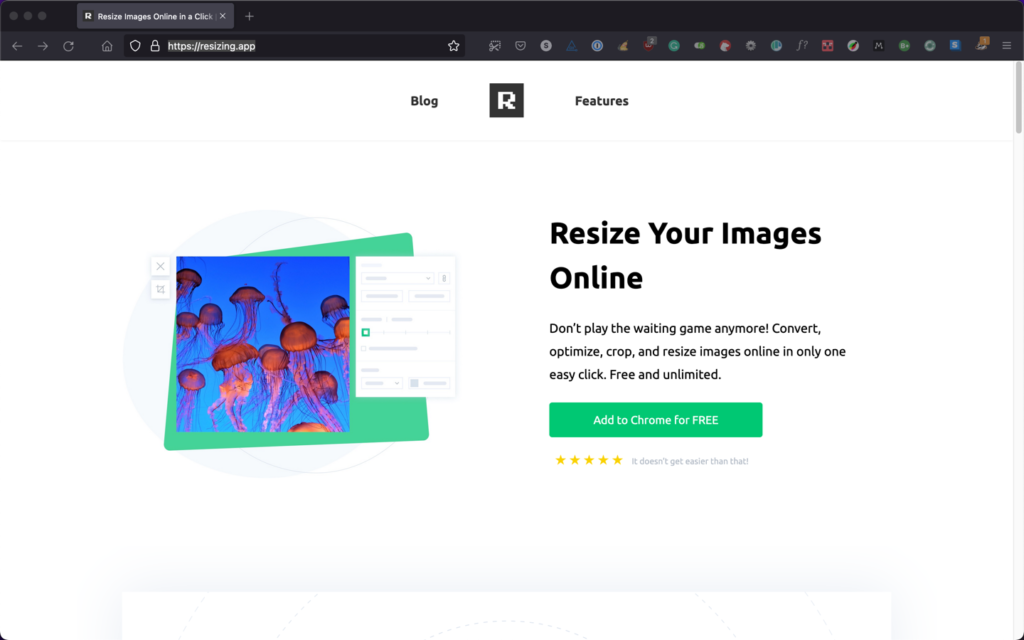
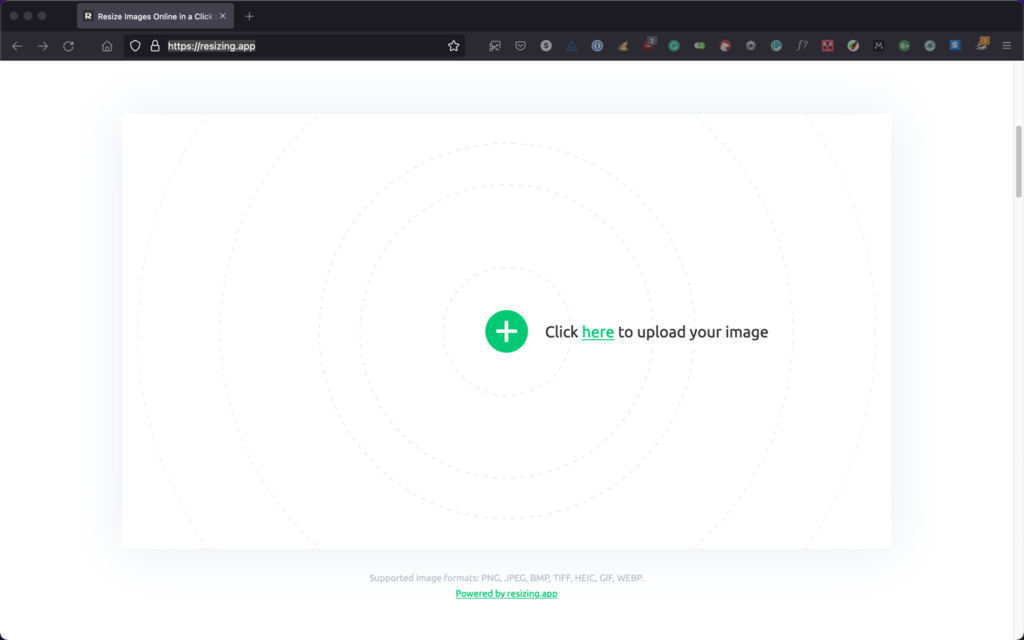
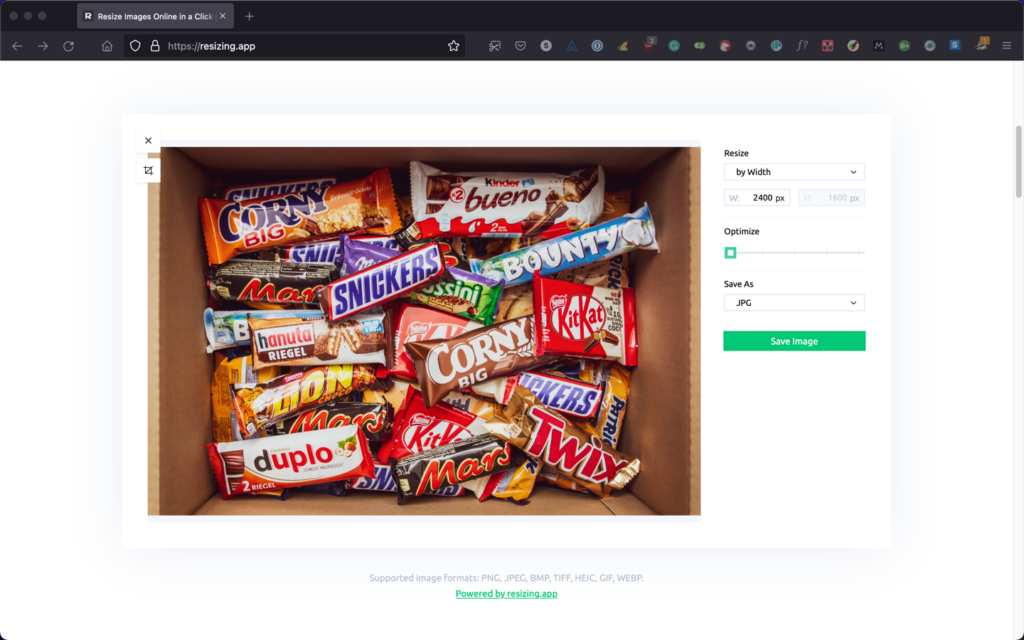
On the ResizingApp main page, scroll down a little and upload your image.
Choose the “by Width” resizing option. We’re using the width setting because our image’s orientation is wider than it is high. If you have an image whose orientation is the other way, “by Largest Side” would be the correct choice. In fact, that choice would always work, regardless of the image aspect ratio. Your largest side should always be set to 2400px.
Note
You probably know this already, but there is no way to magically create pixels where there are none. You cannot upsize an image. If you try to do it, the quality of the resulting image will be extremely poor. If you have a too-small image that someone insists you add to your website, you’re just stuck with poor quality.
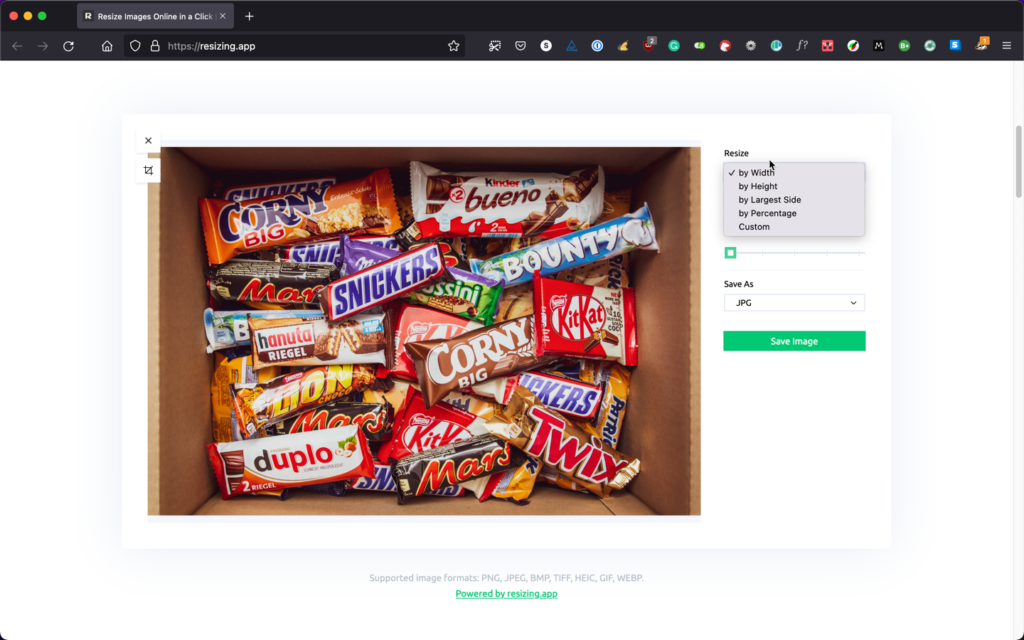
When you enter 2400px as the width, the app takes care of the resize immediately, and now you’ll just save the image to your local filesystem.
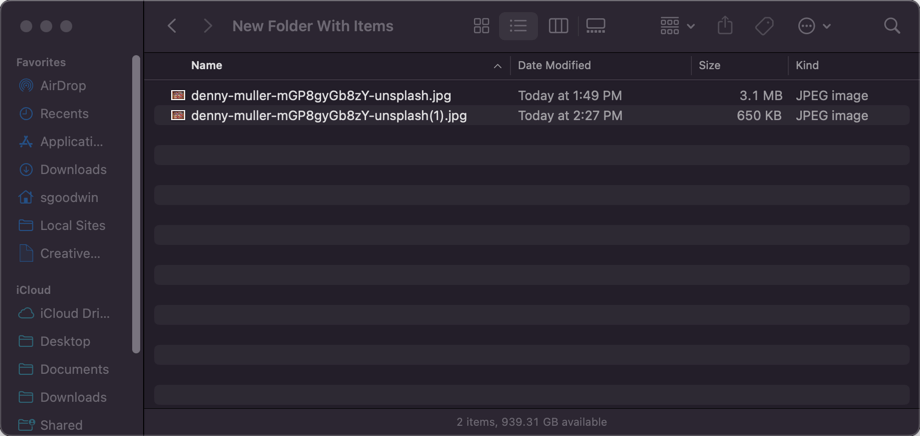
Note the difference in the pre- and post-resize file sizes. Now you can upload your file to the website. You should never upload a file bigger than 1MB, and it should ideally be about half of that.
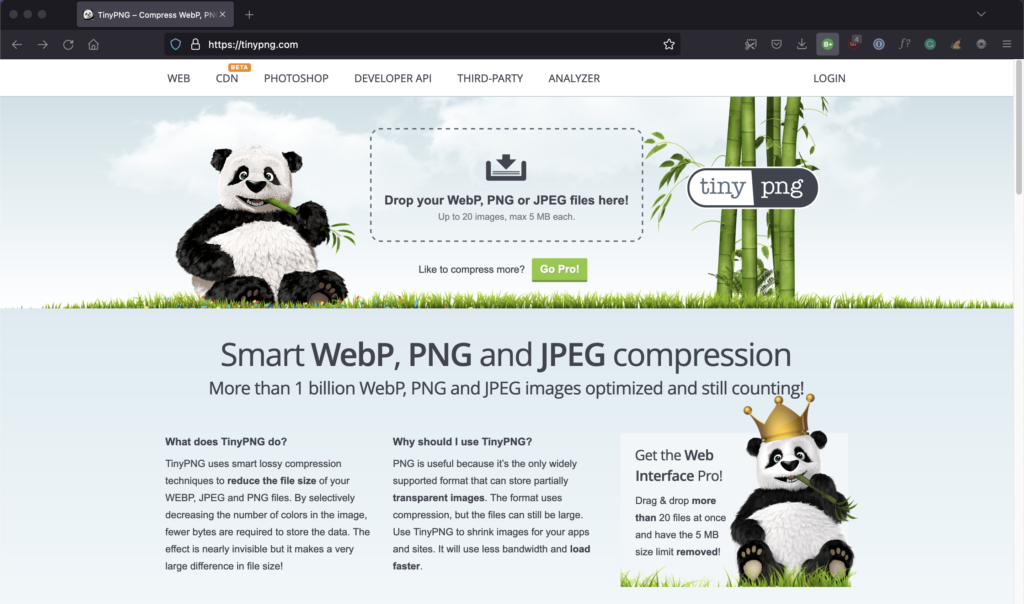
If you find that your resized image file is still too large to add to your site, there’s a handy free tool for that also: https://tinypng.com/
Despite its name, you can compress almost any image file type here. Using TinyPNG, your image keeps the correct dimensions (2400px on the longest side), but gets compressed into fewer bytes.
Just drop your file onto the page, and the panda will compress your image significantly.