Add Financial Assistance to a registration program that doesn’t already have it as a checkout option.
In this case, we’ll add Financial Assistance variations, then set that checkout option(s) to a Name Your Price field.
Note
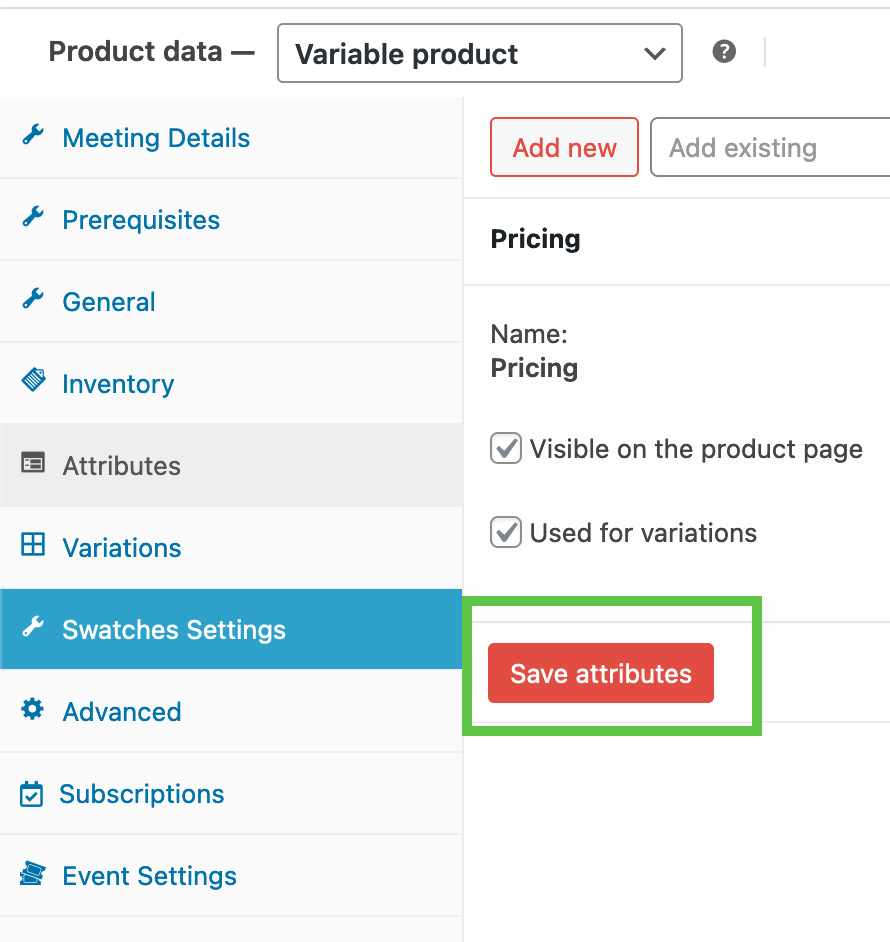
When you’re editing pricing variations and attributes, always be sure to scroll to the bottom of that dialog and save the changes to the product before you save the page. If you forget, none of those attribute changes will be saved.
Some programs have the financial assistance checkout option, but are showing a $0 price on the front end. Here’s how you fix that.
All you have to do is change the Financial Assistance checkout option(s) to a Name Your Price field.